 Shelvd
- mcp
- setup
Connect Shelvd to Claude, Cursor and Claude Code
Add the Shelvd MCP server to Claude Code, Cursor or any MCP client with one URL and Google sign-in, then park your first idea in under a minute.
· 13 min read
On this page
- Before you start
- The server URL
- Claude Code
- Cursor
- Claude Desktop and Claude.ai
- Any other MCP client
- What happens during sign-in
- Check that it works
- What the assistant knows after it connects
- Your first five prompts
- Already using the local server?
- Limits you may notice
- What a healthy session looks like
- Choosing a scope in Claude Code
- Verify the server without a client
- Using several machines or clients
- Teaching the assistant your habits
- What Shelvd can and cannot see
- Frequently asked questions
- If sign-in fails
- Disconnecting
- Next steps
Shelvd is a hosted MCP server. Any client that supports remote MCP servers with OAuth can use it. There is nothing to install, and there are no API keys to copy.
This guide covers every supported path: Claude Code, Cursor, Claude Desktop and Claude.ai, and any other MCP client. It also explains what happens during sign-in, how to test the connection, how to fix common failures, and how to disconnect. You can finish the setup in about a minute. The rest of the guide is reference for when something does not work.
Before you start#
You need three things:
- A Shelvd account. Signing in with Google creates one.
- An MCP client that can reach a remote server over HTTP.
- A browser on the same machine, because sign-in opens a browser window.
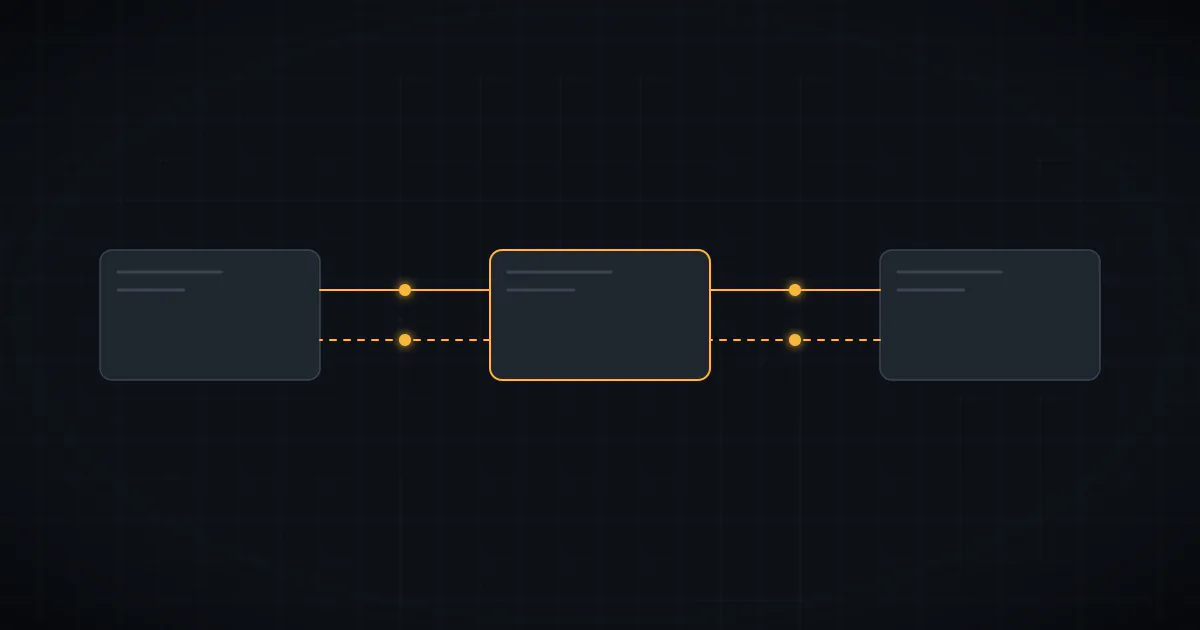
Remote MCP servers differ from local ones. A local server is a process on your machine that your client starts. A remote server is a URL. Your client sends requests to it over the network and signs in on your behalf. That is why Shelvd needs OAuth and not a config file full of paths.
The server URL#
Use this URL in every client:
https://www.shelvd.dev/api/mcpCopy it exactly, including the www. The reason is covered in the troubleshooting section below, but in short: OAuth ties your grant to that exact address.
Claude Code#
Run one command in your terminal:
claude mcp add --transport http -s user shelvd https://www.shelvd.dev/api/mcpHere is what each part does:
--transport httpselects the streamable HTTP transport for a remote server.-s userstores the server in your user settings, so it is available in every project. Without it, the server is scoped to the current folder only.shelvdis the name Claude Code will show for the server.
Next, start Claude Code and run /mcp. Pick shelvd from the list and choose to sign in. Your browser opens the Shelvd sign-in page. Approve the request, and the browser tells you to return to your terminal.
Back in Claude Code, /mcp should now show shelvd as connected. Its tools are ready to use.
To check the list at any time, run:
claude mcp listCursor#
Open Cursor Settings, then MCP, then Add server. Choose a remote (HTTP) server and paste the URL above. Cursor opens the Shelvd sign-in the first time the server is used. After you approve, the server shows as connected and its tools appear in the list.
Claude Desktop and Claude.ai#
Open Settings, then Connectors, then Add custom connector. Name it Shelvd, paste the URL and save. Claude opens the sign-in window. Once you approve, ask Claude to park an idea to confirm.
Any other MCP client#
Windsurf, Codex, VS Code with an MCP extension, ChatGPT custom connectors and custom agents all follow the same pattern. Add a remote MCP server with the URL above and use the streamable HTTP transport. The server publishes standard OAuth metadata, so a compliant client discovers everything on its own.
What happens during sign-in#
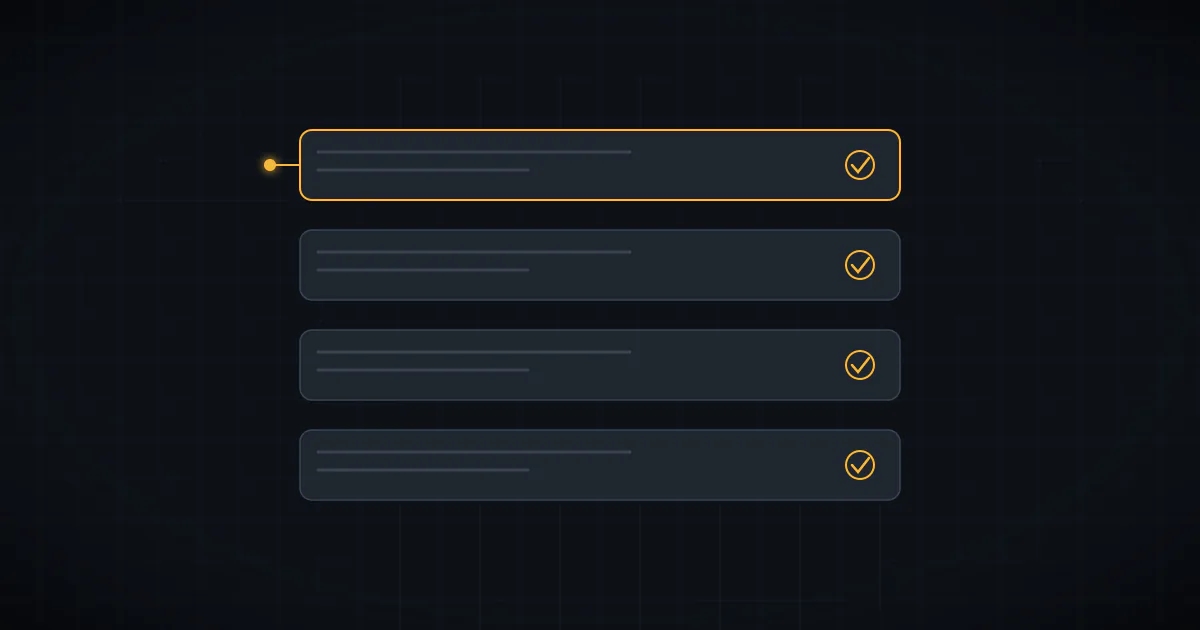
Knowing the flow helps when you debug. Here is the sequence, in plain terms.
- Your client calls the MCP URL without a token. The server answers that it needs authorization and points to its metadata.
- The client reads the metadata. Shelvd publishes the discovery documents that the MCP authorization spec expects, including the protected-resource and authorization-server endpoints.
- The client registers itself. Shelvd supports dynamic client registration, so you never create an app or paste a client ID.
- The client opens your browser at the authorization page, along with a PKCE challenge. Shelvd requires PKCE with the S256 method and rejects anything weaker.
- You sign in with Google and approve the client.
- The browser returns an authorization code to the client. The client swaps the code and its PKCE verifier for tokens.
- From then on, the client sends the access token with every call.
Token lifetimes are short by design. Authorization codes last 10 minutes. Access tokens last one hour. Refresh tokens last 90 days, and each refresh rotates both tokens, so the old refresh token stops working at once. Shelvd stores only hashes of codes and tokens. A leaked database dump would not contain a usable token.
Your client handles all of this. You only see the browser window once, then again after 90 days of no use.
Check that it works#
Ask your assistant:
Park an idea called "test connection".
The assistant should call park_idea and report back that it parked the idea. Then open the Shelvd dashboard. The card should be there, filed under your repo name if the assistant sent one.
The connect page in the app has a Test connection button too. It shows the time of the last call your account received, so you can park an idea, press the button and confirm the timestamp moved. The page also lists the clients you have connected, with call counts, and keeps request durations for seven days so it can show typical and slow response times.
Delete the test card when you are done, or ask the assistant to delete it.
What the assistant knows after it connects#
The server sends instructions to the client when it connects. They tell the assistant that Shelvd parks ideas for later and that every park call should include a project and context. The context covers your editor name, the git repo, the branch and the files you are working on.
The instructions also tell the assistant to run git remote get-url origin and git branch --show-current first. The server cannot see your workspace, so this is how it learns where you are. If your assistant skips this, ideas still save, but they show up in the Inbox with no context.
Shelvd exposes ten tools to the client:
park_ideasaves a new idealist_ideasandsearch_ideasfind ideasget_ideareads one in fullupdate_ideaedits fields or appends a notestart_ideareturns a brief for resuming worksnooze_ideaandcomplete_ideachange statusdelete_ideaandclear_ideasremove ideas
clear_ideas is guarded. Without a confirm flag, it only reports what it would delete and tells the assistant to ask you first.
Your first five prompts#
Once connected, try these in order. Each one exercises a different tool.
- "Park an idea: add rate limiting to the webhook route, due friday 3pm." This tests
park_ideaand date parsing. - "What ideas have I parked?" This tests
list_ideas. - "Search my ideas for webhook." This tests
search_ideas. - "Add a note to the webhook idea: check the retry header." This tests
update_idea. - "Mark the webhook idea done." This tests
complete_idea.
If all five work, the connection is healthy.
Already using the local server?#
If you run the free local server with npx shelvd-mcp, you can move your ideas to the hosted version. Tell your assistant "Connect shelvd to my account". It opens the sign-in, and your local ideas are imported once. The import accepts up to 500 ideas in a single batch and keeps titles, details, notes, status and context.
Limits you may notice#
A few limits apply to every account:
- Rate limit. Each user can make 60 MCP calls per minute. A normal session never comes close. A runaway loop will.
- Free plan size. Free accounts hold 50 open ideas. When you reach it,
park_ideareturns a message that says so and links to the upgrade page. Mark ideas done to free room. - List size.
list_ideasreturns 20 ideas by default and accepts a limit up to 200.
What a healthy session looks like#
It helps to know what success looks like, so you can spot a half-working setup.
You type a request such as "park this for Friday: add retry headers to the webhook". Your client shows a tool call to park_idea on the shelvd server. Some clients ask you to approve the call the first time. Approve it once, or allow the tool for the session.
The server answers with one readable line. It names the idea, the project it landed in, its id and the due time in your timezone. For example, it reports that it parked the idea in your repo's project and that it is due Friday at your default time. The assistant then relays that line and carries on with your task.
Two warning signs are worth knowing. If the reply says the idea went to the Inbox, the assistant did not send a project or repo, and you should ask it to set one. If the reply says it could not read the date, the idea is saved without one, and you can fix it by asking the assistant to update the due date.
Neither case needs reconnecting. They are about the content of the call and not the connection.
Choosing a scope in Claude Code#
Claude Code can store an MCP server in three places. The scope flag decides which one.
-s localkeeps the server private to you and to the current project. This is the default when you pass no flag.-s projectwrites the server to a.mcp.jsonfile in the repo, so teammates who clone it are prompted to approve the same server.-s usermakes the server available to you in every project on this machine.
For Shelvd, -s user is almost always right. Your idea inbox belongs to you, not to a repository, and you want to park ideas from any folder. Avoid -s project for Shelvd. Each person signs in with their own account, and a shared config file would only suggest otherwise.
If you already added Shelvd with the default scope and later want it everywhere, remove the local entry first:
claude mcp remove shelvd -s local
claude mcp add --transport http -s user shelvd https://www.shelvd.dev/api/mcpTwo entries with the same name in different scopes can confuse the tool list, so keep only one.
Verify the server without a client#
You can confirm the server is reachable and publishes its OAuth metadata with two requests. This helps when you cannot tell whether a failure is on your side or the server's.
curl -s https://www.shelvd.dev/.well-known/oauth-protected-resource/api/mcp
curl -s https://www.shelvd.dev/.well-known/oauth-authorization-serverThe first returns the resource metadata for the MCP endpoint. The second lists the authorization, token, registration and revocation endpoints, the supported grant types (authorization_code and refresh_token) and the one supported PKCE method, S256. If both respond with JSON, the server is up and your client has everything it needs to start sign-in.
A plain request to the MCP URL without a token returns an authorization error. That is expected. It is the signal that tells your client to start OAuth.
Using several machines or clients#
One Shelvd account can connect from as many clients as you like. A laptop with Claude Code, a desktop with Cursor and a browser session on Claude.ai all see the same ideas. Each client signs in on its own and gets its own token pair, so revoking one does not affect the others.
Every idea records which editor parked it. The dashboard lets you filter by that editor, and list_ideas accepts a provider filter. The recognized providers are Claude Code, Cursor, Windsurf, Codex, VS Code, Claude.ai and a catch-all for anything else. That filter helps when you want to see only what came out of your Cursor sessions.
Teaching the assistant your habits#
The server instructions already ask the assistant to attach context. You can add your own preferences in the file your client reads for standing instructions, such as a CLAUDE.md file in Claude Code. Short rules work best. For example:
When I say "park this", call park_idea from the shelvd server.
Always pass project, repo, branch and the files we touched.
Use my local timezone for dates.
Before clear_ideas with confirm, show me what will be deleted.Keep the list short. A long list of rules competes with the real task for the assistant's attention. These four lines cover the cases that matter.
What Shelvd can and cannot see#
When you approve the sign-in, you grant the client access to your Shelvd ideas through the ten tools above. You do not grant access to your Google account data beyond sign-in, and you do not grant access to your files.
The server only knows what the assistant tells it. If the assistant sends a repo name, a branch and a list of file paths, Shelvd stores those strings. It never reads the files. It never sees your source code unless you paste it into an idea's details yourself, so avoid doing that for anything sensitive.
All stored text is encrypted at rest. Every query is scoped to the user ID in your verified token, so one account cannot reach another account's ideas through the MCP tools.
Frequently asked questions#
Do I need the local server? No. The hosted server needs no installation. The local server is an open-source option for people who want ideas kept in a file on their own machine.
Does it work offline? No. The hosted server is reachable only over the network. If you are offline, the assistant cannot park the idea, and it will say so.
Can two clients use one account at once? Yes. Each client holds its own tokens.
What if my client does not support OAuth for remote servers? Use the local server, or update the client. Support for remote MCP with OAuth is now common in the major editors.
How do I sign out everywhere? Remove the server from each client. Tokens also expire on their own, with refresh tokens lasting 90 days.
Is there an API key option? No. Sign-in with OAuth is the only path, which keeps long-lived secrets out of your config files.
If sign-in fails#
Most failures come from a few causes. Work through them in order.
Wrong URL. Make sure you used the www.shelvd.dev URL exactly. OAuth ties the grant to that address, so a different host will not match. The bare shelvd.dev domain is a common slip.
Stale registration. If you changed the URL after a failed attempt, remove the server and add it again. Some clients cache the old registration.
Browser did not open. Copy the sign-in URL your client prints and open it by hand. Make sure you are signed in to the Google account you want.
Expired grant. An authorization code lives for 10 minutes. If you waited longer, start the sign-in again.
Tools missing after connect. Restart the client. Some clients load the tool list once at startup.
Quota message. If a park call says the free plan holds 50 open ideas, nothing is broken. Complete some ideas or upgrade.
Still stuck? Email connect@shelvd.dev with the client name and the error text.
Disconnecting#
To remove Shelvd from Claude Code, run:
claude mcp remove shelvd -s userIn Cursor and Claude Desktop, delete the server from the same settings screen where you added it. Shelvd also supports standard token revocation, so a client that signs out can invalidate its own tokens. Your ideas stay in your account either way, and you can export them as JSON or Markdown from settings.
Next steps#
You are connected. Park a real idea next time one interrupts you. For a workflow built around this, read how to keep an idea inbox that Claude can read. To see why Shelvd exists and how reminders work, read Shelvd: park the idea, finish the feature.
Park your next idea in Shelvd
Save it from Claude, Cursor or Codex. Get nudged until it ships.
Launch App